
Introduction
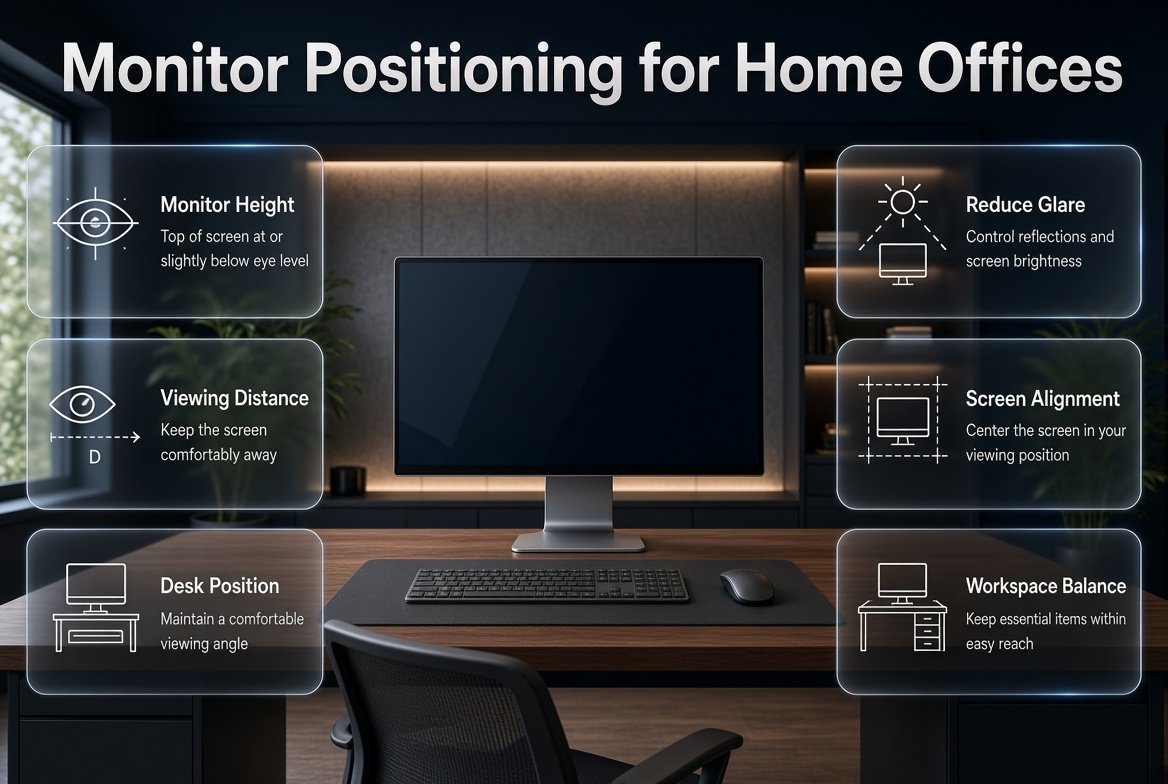
Monitor Positioning for Home Offices | Working from home becomes frustrating when your neck feels stiff, your eyes become tired, or you constantly lean toward your computer screen to read comfortably. These problems are not always caused by long working hours. Sometimes, the real issue is a monitor that sits too low, too high, too close, or at an awkward angle.
Monitor positioning for home offices is an important part of creating a comfortable and practical workspace. The right arrangement helps you view your screen naturally, maintain a relaxed posture, reduce distracting reflections, and make better use of your available desk space.
Whether you work as a remote employee, freelance writer, graphic designer, programmer, or digital marketing professional, your workstation should support the way you actually work. A well-planned setup does not require expensive furniture or complicated equipment. Small adjustments to monitor height, viewing distance, desk depth, lighting, and screen alignment can make your workspace more functional.
For more ideas about creating a comfortable and attractive home, explore Design Mode 24 Interior Design. This guide explains how to choose the right monitor position, organize different screen arrangements, avoid common ergonomic mistakes, and create a home office that balances comfort with thoughtful interior design.
What Is the Best Monitor Position for a Home Office?
The best monitor position places your primary screen directly in front of you, approximately an arm’s length away, with the top edge at or slightly below eye level for most seated users. Your eyes should naturally look slightly downward toward the screen, while your head remains balanced over your shoulders.
These recommendations provide a useful starting point rather than a fixed rule for every person. Screen size, eyesight, seating position, and the type of work you perform all influence the final arrangement.
Recommended Monitor Positioning Measurements
Use the following measurements as a practical reference when setting up your workstation.
| Monitor positioning factor | Recommended starting point |
|---|---|
| Viewing distance | Approximately 20–30 inches (50–76 cm) |
| Screen height | Top edge at or slightly below eye level |
| Horizontal position | Directly in front of your body |
| Viewing direction | Slightly downward |
| Screen angle | Adjust to maintain comfortable visibility and reduce reflections |
| Head position | Neutral, without persistent forward leaning |
| Keyboard and mouse | Close enough to prevent unnecessary reaching |
| Lighting | Comfortable illumination without direct screen reflections |
A larger monitor may require additional viewing distance, while a smaller display may need increased text scaling to remain readable. Instead of following measurements blindly, check whether you can view the entire screen comfortably without changing your natural posture.
Why Does the Correct Monitor Position Matter?
Your monitor influences how you hold your head, neck, shoulders, and upper back throughout the working day. A screen that is positioned too low may encourage you to bend your neck. A screen that sits too high can lead to upward head tilting, while an awkward horizontal position may cause repeated neck rotation.
A suitable arrangement makes it easier to work without constantly compensating for the position of your equipment.
The main benefits include:
- More comfortable screen viewing during extended tasks.
- Better alignment between your head, shoulders, and upper body.
- Less need to lean forward to read small text.
- A clearer relationship between your monitor, keyboard, mouse, and chair.
- Better control over reflections and distracting light.
- A more organized workstation with fewer unnecessary accessories.
Correct monitor placement cannot prevent every cause of discomfort, but it removes several avoidable problems from your everyday work environment.
How High Should a Computer Monitor Be?
For most seated computer users, the top edge of the monitor should sit at or slightly below eye level. This position allows your eyes to look naturally downward across the display without requiring you to lift your chin or bend your neck excessively.
However, the best screen height depends on your body position, monitor dimensions, and visual requirements.
Step 1: Adjust Your Chair First
Sit in the position you normally use for work. Adjust the chair so your feet are supported and your shoulders can relax. Your elbows should remain reasonably close to your body while using the keyboard.
Do not position the monitor before establishing a comfortable sitting posture. If you change your chair height afterward, your eye level will change as well.
If your feet cannot reach the floor comfortably after raising the chair, a suitable footrest can help support your legs.
Step 2: Align the Screen With Your Natural Eye Level
Look straight ahead while sitting comfortably. The top of the screen should be around eye level or slightly lower.
You should be able to scan the display without repeatedly lifting your chin. If you notice that your head tilts backward to view the upper portion of the screen, lower the monitor and reassess your seating position.
Step 3: Check the Entire Display
A screen can have the correct top-edge height but still feel uncomfortable if it is excessively large or positioned too close.
Read a paragraph near the top, then look toward the lower portion of the display. Your eyes should move comfortably, and you should not need exaggerated head movements to follow ordinary work.
For large monitors, a slightly lower position may feel more natural because the upper and lower portions of the display cover a greater vertical area.
Step 4: Use a Suitable Monitor Riser
If your monitor stand cannot provide the necessary height, consider a stable riser or adjustable monitor arm.
Before purchasing either option, measure the required height difference. A small adjustment may solve the problem without requiring expensive equipment.
Expert tip: Your monitor should fit your natural seated position, not the other way around. Avoid raising your chair or changing your posture simply to make the display align with decorative shelves or other furniture.
How Far Away Should a Monitor Be From Your Eyes?
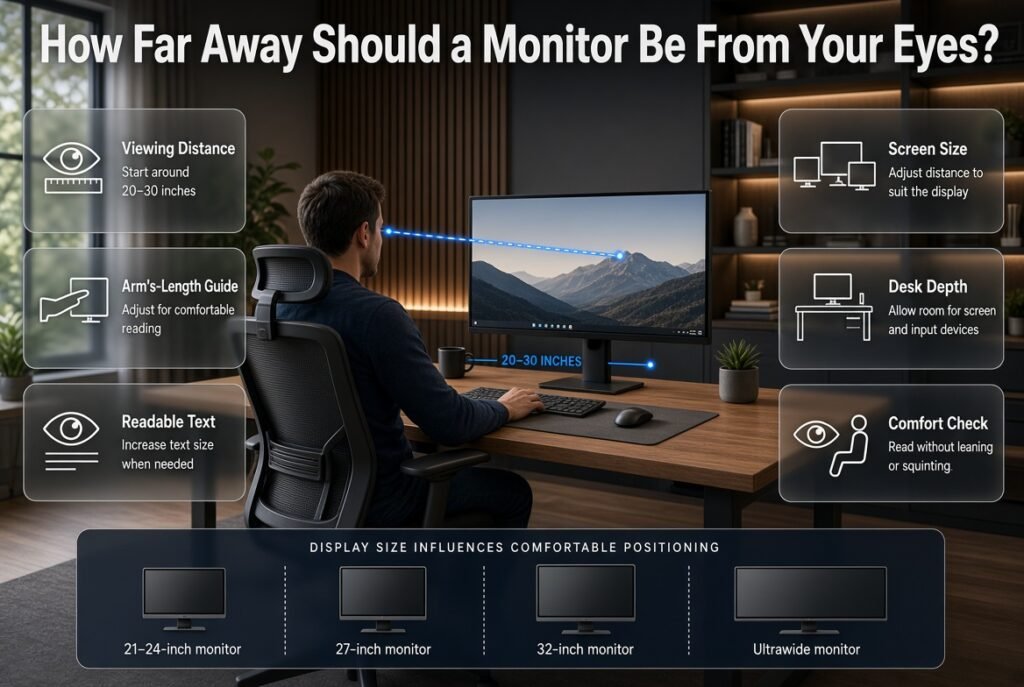
A computer monitor is commonly positioned approximately 20–30 inches from the eyes, which is roughly an arm’s length for many adults. The ideal distance depends on the screen size, resolution, text size, and your vision.
You should be able to read comfortably without squinting, leaning forward, or moving your head excessively to follow content.
How to Find Your Ideal Viewing Distance
Begin by sitting back in your chair with your shoulders relaxed. Extend your arm toward the display to estimate a reasonable starting distance, then adjust the monitor according to your actual viewing needs.
Check the following:
- Can you read normal text without leaning forward?
- Can you see the main working area without excessive head movement?
- Does the screen feel uncomfortably close?
- Do you need to squint because text appears too small?
- Can you maintain a relaxed posture while working?
If the text is difficult to read, increase its size before moving the monitor significantly closer. Operating-system scaling and application settings can make a substantial difference.
Does Monitor Size Affect Viewing Distance?
Yes. A large display generally requires more distance to view the entire working area comfortably. A smaller display may be easier to accommodate on a compact desk, although very small text can create its own problems.
| Monitor size | Positioning consideration |
|---|---|
| 21–24 inches | Begin around arm’s length and adjust for readability |
| 27 inches | Check whether additional distance improves overall viewing comfort |
| 32 inches | Allow enough room to view the display without excessive eye or head movement |
| Ultrawide monitor | Ensure the full working area remains comfortable to scan |
| Laptop screen | Consider text scaling and a separate display for extended desk work |
These suggestions are starting points, not exact distance requirements based on screen size alone.
What If Your Desk Is Too Shallow?
A shallow desk may force you to choose between placing the monitor too close and pushing the keyboard toward the front edge.
Before buying a new display, measure the available desk depth and account for the monitor stand. You also need enough space for your keyboard, mouse, and forearms.
Read Ergonomic Desk Depth Requirements for additional guidance on selecting a desktop that supports comfortable screen placement.
How Should You Position a Monitor to Support Neck Comfort?
Place your main monitor directly in front of your body at a height that allows your head to remain balanced over your shoulders. Avoid positions that require frequent twisting, upward tilting, or leaning toward the screen.
The objective is to arrange the equipment around a comfortable working posture rather than forcing your body to adapt to an inconvenient layout.
Keep Your Main Screen Centered
The primary display should generally align with your nose and torso. If you regularly work with a monitor positioned far to one side, you may spend much of the day turning your head without noticing.
This issue is particularly relevant for people who write articles, manage spreadsheets, edit documents, or use a single screen for most of their work.
Centering the screen helps keep your viewing direction consistent.
Avoid Excessive Forward Leaning
Forward leaning often develops gradually. A person may begin a task sitting comfortably, then move closer to the monitor as the text becomes difficult to read.
Instead of repeatedly correcting your posture, identify the underlying problem.
Possible causes include:
- Text that is too small.
- A display positioned too far away.
- A screen that is too low.
- Inadequate lighting or distracting reflections.
- An uncomfortable chair or poorly arranged desk.
Correct the relevant factor rather than relying on constant reminders to sit straight.
Coordinate Your Chair and Monitor
Your chair and monitor form part of the same workstation. A chair that places your eyes too low relative to the display may encourage you to lean forward or raise your chin.
Adjust your seat first, then set the monitor height. Check that your feet remain supported and your keyboard is comfortable to reach.
If the display cannot be adjusted sufficiently, a monitor riser or arm may be more practical than repeatedly changing your sitting position.
How to Position a Laptop Screen for Home Office Work
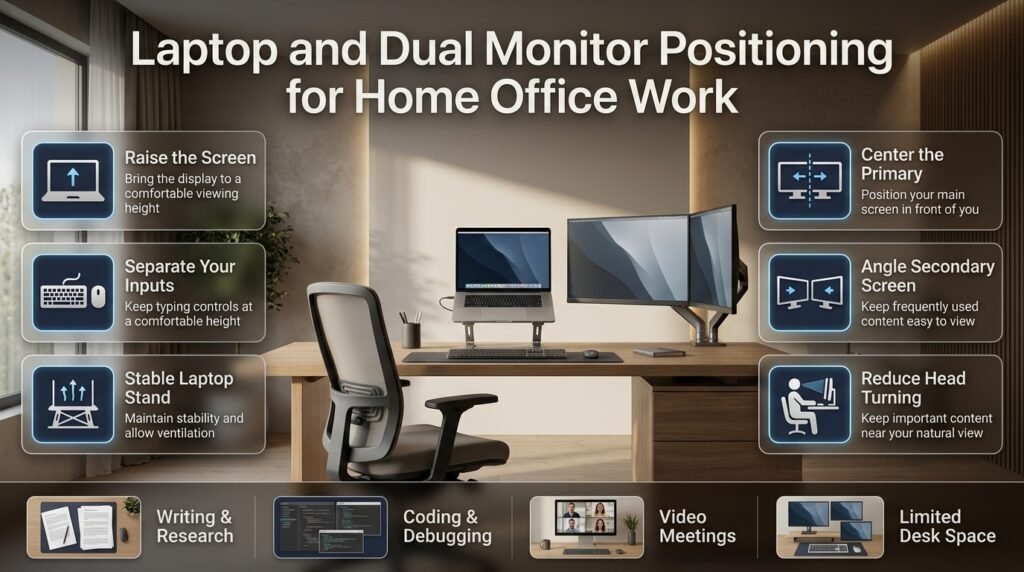
Laptop positioning is more complicated because the screen and keyboard are attached. Raising the screen improves viewing height but also raises the keyboard, which can make typing uncomfortable.
For people who work at a desk for several hours each day, a laptop stand combined with an external keyboard and mouse is often a practical solution.
Set Up a Laptop Ergonomically
First, place the laptop directly in front of you. Raise the display until it reaches a comfortable viewing height, then position a separate keyboard and mouse so your arms can remain relaxed.
Keep the mouse close to the keyboard to avoid unnecessary reaching.
Make sure the laptop stand is stable and does not obstruct ventilation openings. Check the manufacturer’s guidance when selecting a stand for a particular model.
Is a Laptop Stand Necessary?
Not everyone needs one. If you use your laptop occasionally and can maintain a comfortable posture, the existing arrangement may be sufficient.
However, a stand becomes more useful when the laptop is your primary workstation and the screen is too low for comfortable viewing.
A basic stand may work well in a small room, while an adjustable model offers more flexibility if you change seating positions or share the workspace.
What If You Cannot Buy External Accessories?
If an external keyboard and mouse are not currently available, prioritize a workable compromise. Avoid raising the laptop so high that typing becomes uncomfortable.
Increase text size, use a stable working surface, and change your posture regularly. When practical, alternate between different tasks and take breaks instead of remaining in an uncomfortable position for hours.
How to Position Dual Monitors Correctly
The ideal dual-monitor arrangement depends on how frequently you use each display. If both monitors receive similar attention, position them side by side with the central viewing area aligned with your body.
If one display is used much more frequently, center that primary monitor and place the secondary display beside it.
Dual-Monitor Arrangements for Different Tasks
| Working situation | Recommended arrangement |
|---|---|
| Equal use of both monitors | Center the combined viewing area |
| One main display and one reference screen | Center the main display and angle the second inward |
| Writing and research | Keep the writing screen central and research material beside it |
| Coding and debugging | Place the primary coding area centrally, with reference content nearby |
| Video meetings | Keep the main screen and camera near the natural viewing direction |
| Limited desk space | Consider a monitor arm or a single larger display |
How to Reduce Neck Rotation With Two Screens
Avoid placing your secondary display so far away that you must repeatedly turn your entire head to read it.
Angle side monitors slightly inward. Keep frequently used windows closer to the center of your visual field.
If you spend most of your time on one monitor, do not center the gap between both displays simply for visual symmetry. Place the main screen where you naturally look while working.
Should Both Monitors Be the Same Height?
Similar screen heights can create a more consistent arrangement, especially when you switch between displays frequently.
However, identical height is not the only consideration. Screen dimensions, your viewing angle, and the way you use each monitor also matter.
Prioritize a comfortable primary viewing position and make secondary displays easy to view without excessive head movement.
How to Reduce Monitor Glare and Improve Screen Visibility
Glare can make text difficult to read and encourage you to move your head to find a clearer viewing angle. Before purchasing anti-glare accessories, review the relationship between your monitor, windows, lamps, and other light sources.
Where Should a Monitor Face a Window?
Positioning a monitor perpendicular to a window is often a useful starting point. This arrangement can reduce direct sunlight on the screen and limit reflections from the window behind you.
A monitor facing a bright window may be difficult to view because the surrounding light is much brighter than the display. A window directly behind the monitor can also create distracting reflections.
Adjust the desk orientation, blinds, or curtains until the screen remains comfortably visible.
How Should You Manage Room Lighting?
The objective is balanced illumination rather than making the room as dark as possible.
Use these practical adjustments:
- Keep direct sunlight from falling onto the screen.
- Move lamps away from angles that create reflections.
- Use curtains or blinds when daylight becomes distracting.
- Adjust display brightness to suit the surrounding environment.
- Clean the screen when smudges interfere with visibility.
- Increase text size when small content is difficult to read.
A matte display or suitable anti-glare accessory may help in some environments, but it will not solve every lighting problem.
Coordinate Window Treatments With Your Workspace
Window treatments can improve the room’s appearance while helping you control daylight.
For additional planning ideas, explore Automated Window Treatment Planning. Consider how the window covering will affect brightness, privacy, and reflections before finalizing the desk location.
How to Position a Monitor on a Small Home Office Desk
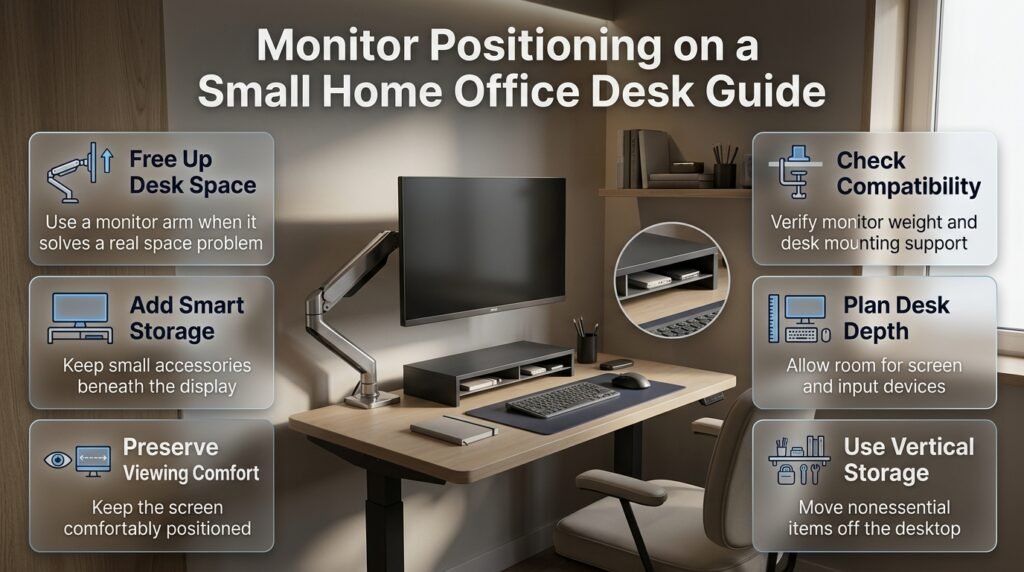
A small desk requires careful planning because the monitor, keyboard, mouse, paperwork, and accessories compete for limited space.
The most important goal is to preserve a comfortable viewing distance while keeping the primary screen centered and the input devices easy to reach.
Use a Monitor Arm to Free Up Space
A monitor arm can free up the area occupied by a conventional stand. It may also make it easier to adjust the screen height, angle, and distance.
Before purchasing one, confirm that the arm supports your monitor’s weight and mounting requirements. Check whether your desk can safely support its clamp or mounting plate.
A monitor arm is useful only when it solves a real space or positioning problem. If the existing stand already works well, replacing it may provide little benefit.
Choose a Stand With Practical Storage
A compact monitor riser can create space underneath the display for small accessories. This can help keep frequently used items organized without filling the rest of the desktop.
Avoid filling every available gap with decorative objects. The keyboard and mouse need enough room to move freely, and the monitor must remain easy to adjust.
Plan Desk Depth Before Buying Furniture
Measure the available space before choosing a monitor or desk. Account for the screen stand, keyboard, mouse, and the distance needed to view the display comfortably.
A desk can look spacious in a showroom but feel crowded once equipment is installed.
For additional workspace organization, see Wall Shelves Ideas and DIY Home Projects.
Wall-mounted storage may help remove nonessential items from the desk, provided shelves do not interfere with screen adjustment or create distracting visual clutter.
How to Combine Monitor Ergonomics With Interior Design
A home office should support daily work while fitting naturally into the surrounding room. You do not need to sacrifice appearance to achieve a comfortable workstation.
Start with the functional arrangement, then organize the furniture, accessories, and decorative details around it.
Select Furniture That Supports Your Monitor
A desk, chair, monitor stand, and storage units should work together. A thick desktop and a low monitor stand may place the display too low, while a shelf positioned directly above the screen may limit adjustment.
Consider the following when arranging the room:
- Choose enough desk depth for comfortable viewing.
- Keep the primary display clear of decorative objects.
- Use cable management to reduce clutter.
- Select a monitor arm that suits the desk construction.
- Position frequently used storage within easy reach.
- Leave sufficient room for your chair and normal movement.
A visually attractive setup should not force you to work with a screen that is too low or too far to one side.
Maintain Visual Balance Without Sacrificing Comfort
Furniture proportions influence how a workstation feels within a room. An oversized monitor on a very small desk can make the arrangement feel crowded, while a tiny desk accessory may appear out of scale beside a large display.
For practical interior design guidance, explore Styling Principles for Visually Balanced Homes, Understanding Furniture Proportions, and Japandi Furniture Proportions.
These resources can help you consider furniture scale, visual balance, and the relationship between individual elements.
The key is to establish comfortable monitor positioning first. Decorative symmetry should remain secondary to a usable workspace.
Create a Professional Home Office Without Expensive Furniture
A professional-looking workstation does not depend on premium furniture. A stable desk, comfortable chair, correctly positioned monitor, suitable lighting, and organized accessories can provide a strong foundation.
Keep unnecessary items off the desktop and choose a consistent approach to cable management. Store paperwork in nearby drawers or shelves rather than allowing it to crowd the keyboard.
For more ideas, read Sophisticated Interiors Without Luxury Furniture.
If your workspace forms part of a living room or bedroom, use furniture placement and storage to create a defined work area without making the entire room feel like an office.
How to Choose the Right Monitor Stand or Arm
A monitor stand or arm should solve a specific positioning problem. The best option depends on the adjustments you need, your desk dimensions, the monitor’s weight, and how often you change your setup.
Monitor Stand vs. Monitor Arm
| Feature | Monitor stand | Monitor arm |
|---|---|---|
| Cost | Often less expensive | Often more expensive |
| Height adjustment | Depends on the model | Usually more flexible |
| Desk space | Uses space beneath the monitor | Can free up stand space |
| Installation | Often straightforward | May require mounting |
| Position changes | Limited on fixed stands | Generally easier |
| Best suited for | Stable, simple setups | Flexible or space-limited workstations |
When Should You Choose a Monitor Riser?
A riser is suitable when the monitor needs a small height adjustment and the desk has enough depth.
Choose a stable model that supports the display securely. Consider its width, depth, weight capacity, and the space available underneath.
When Is a Monitor Arm More Useful?
A monitor arm is helpful when the display needs frequent adjustments or the stand occupies too much workspace.
It can be especially useful for shared desks, compact workstations, and setups that alternate between seated and standing positions.
However, the desk must support the mounting system safely. Confirm compatibility before buying, and avoid exceeding the arm’s weight limits.
How to Position a Monitor at a Standing Desk
Standing desks introduce an additional consideration: the monitor must remain comfortable to view when you change working height.
When standing, position the top edge of the screen at or slightly below eye level as a starting point. Adjust the display so your head remains balanced and your eyes can look slightly downward.
Recheck the Screen After Changing Desk Height
A standing desk changes the relationship between your eyes and the display. If you switch between sitting and standing, the monitor may need adjustment each time.
An adjustable monitor arm can simplify this process.
Check that your keyboard and mouse also remain at comfortable heights. Correct monitor placement alone cannot compensate for an awkward standing posture.
Should You Stand All Day?
A standing desk is not a requirement for a healthy workstation, and standing continuously is not the goal.
Changing positions throughout the day can help you avoid remaining in one posture for too long. Alternate between sitting and standing according to your comfort, work demands, and available equipment.
Monitor Positioning for Different Types of Home Office Work
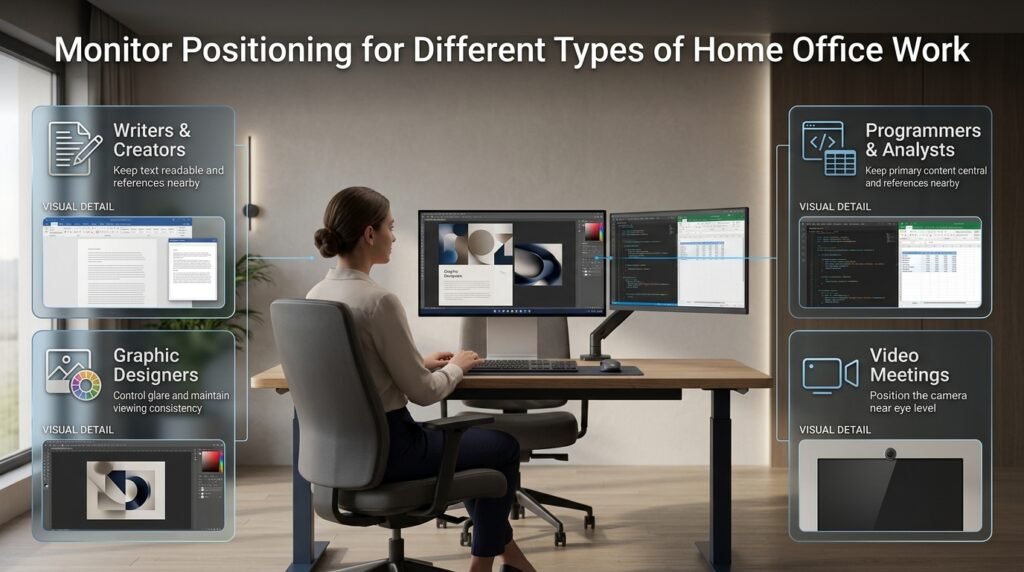
Not everyone uses a monitor in the same way. A writer may spend most of the day reading and typing, while a designer may work with detailed visual content and multiple applications.
Your main tasks should influence the layout, but the basic principles of comfortable viewing still apply.
For Writers and Content Creators
Place the primary monitor directly in front of you and ensure that text is readable without leaning forward.
If you frequently consult references, consider a second display or a window arrangement that keeps source material nearby without forcing repeated head turns.
Use suitable text scaling and maintain enough desk space for your keyboard and mouse.
For Graphic Designers
Visual work often benefits from a display that provides adequate resolution and consistent viewing conditions.
Avoid placing the screen where bright light or reflections interfere with color perception. Keep the monitor centered and allow enough distance to review the overall composition.
If your work requires accurate color decisions, use an appropriate display and follow a suitable calibration process rather than relying on monitor positioning alone.
For Programmers and Spreadsheet Users
Large spreadsheets, code editors, and technical documents may encourage people to use wide or multiple displays.
Place the most frequently used content in the primary viewing area. Keep reference screens nearby and angle them inward if necessary.
Avoid making a monitor so wide or distant that you must repeatedly rotate your head to follow ordinary tasks.
For Video Meetings
Keep the main display in front of you and place the camera near eye level when practical.
If the camera sits too far below the screen, the image may show an awkward upward angle. If it sits far above the display, you may repeatedly look away from the camera.
A simple adjustment to camera and monitor placement can make video calls feel more natural without requiring a complicated setup.
Common Monitor Positioning Mistakes and How to Fix Them
Many workstation problems arise because people arrange equipment around the furniture rather than considering how they will use it.
Mistake 1: Leaving the Monitor Too Low
A fixed monitor stand may not match your seated eye level. This can encourage you to bend your neck to view the screen.
How to fix it: Adjust your chair first, then raise the monitor with a stable riser or arm if necessary.
Mistake 2: Raising the Monitor Too High
Users sometimes raise a display to align it with shelves or other decorative features.
Why it matters: You may need to tilt your head backward to read the upper portion of the screen.
How to fix it: Lower the display until your viewing direction feels natural.
Mistake 3: Sitting Too Close to the Display
A shallow desk or small text may encourage you to move closer.
How to fix it: Adjust text scaling and reconsider the viewing distance. If the desk is too shallow, evaluate whether a different stand or desk arrangement can provide more space.
Mistake 4: Placing the Main Screen Off-Center
An off-center display may seem convenient when accessories occupy the middle of the desk.
How to fix it: Move the primary monitor in front of your body and relocate unnecessary objects to the sides.
Mistake 5: Ignoring Window Reflections
A monitor positioned directly opposite a bright window may become difficult to read.
How to fix it: Adjust the desk orientation, window coverings, and lamp placement to reduce reflections.
Mistake 6: Raising a Laptop Without Adjusting Its Keyboard
A laptop stand improves screen height but may make the built-in keyboard uncomfortable.
How to fix it: Use an external keyboard and mouse when possible, or choose a workable compromise until accessories become available.
Mistake 7: Buying Equipment Before Measuring
People often purchase monitor arms, risers, or desks without checking dimensions.
Why it matters: The accessory may not fit the desk, provide enough height, or support the monitor’s weight.
How to fix it: Measure the screen, desk, stand, and mounting area before making a purchase.
Mistake 8: Assuming Perfect Posture Means Staying Still
Some users try to maintain a rigid sitting position throughout the entire day.
Why it matters: Remaining in one position for long periods can become uncomfortable even when the monitor is correctly placed.
How to fix it: Change posture, stand when practical, stretch, and take regular breaks.
Expert Advice for Building a More Comfortable Monitor Setup
The most effective workstation improvements begin by identifying the problem rather than buying new equipment immediately.
If the screen is too low, a riser may solve the issue. If text is difficult to read, changing display scaling may be more useful than replacing the monitor. If your shoulders feel uncomfortable because you reach for the mouse, rearranging the input devices may be the more important change.
Make Adjustments in the Right Order
Start with your chair and foot support. Next, adjust monitor height and viewing distance. Then review the screen angle, keyboard position, mouse reach, and lighting.
This order makes it easier to identify which change improves comfort.
Test Before Purchasing
If you suspect that your monitor needs to be raised, test a different height using a stable temporary platform before buying a permanent riser.
Never use an unstable stack that could cause the display to slip or fall.
Similarly, measure your desk before choosing an arm. Check the clamp space, desk construction, monitor weight, and required adjustment range.
Make Changes Gradually
If you have used an uncomfortable arrangement for months, change the setup in manageable steps.
After each adjustment, work normally for a while and evaluate whether you can read comfortably without leaning or turning your head.
If discomfort continues, review the entire workstation rather than repeatedly changing one measurement.
Consider Individual Visual Needs
People who wear bifocals or progressive lenses may need a different screen height or viewing angle from someone using ordinary single-vision lenses.
If you must tilt your head to see the screen clearly, or if visual discomfort persists despite sensible adjustments, consider seeking advice from an appropriate eye-care professional.
Remember That Ergonomics Includes Movement
Even a carefully arranged monitor cannot replace movement and breaks.
Change positions throughout the day, look away from the screen periodically, and avoid remaining in one posture for excessively long periods.
The purpose of an ergonomic setup is to make comfortable working positions easier to maintain, not to eliminate natural movement.
Monitor Positioning Checklist for Home Offices
Use this checklist whenever you create a new workstation or review an existing one.
- My main monitor is directly in front of my body.
- The top edge of the display is at or slightly below eye level.
- The viewing distance allows me to read without leaning forward.
- My head and neck remain in a comfortable position.
- My chair supports a relaxed seated posture.
- My feet are supported.
- My keyboard and mouse are within easy reach.
- The monitor does not receive distracting direct reflections.
- My monitor stand is stable and supports the display securely.
- My desk has enough room for the screen and input devices.
- I can change posture and take regular breaks.
- My setup accommodates my actual work tasks.
You do not need to purchase every ergonomic accessory to meet these basic requirements. Start with the equipment you already have and improve the arrangement where necessary.
What Is the Best Monitor Position for a Home Office?
The best monitor position for a home office keeps your primary screen directly in front of you, approximately an arm’s length away, with the top edge at or slightly below eye level. Your eyes should naturally look slightly downward toward the display while your head remains balanced over your shoulders. This arrangement makes it easier to read, write, attend meetings, and complete everyday computer tasks without repeatedly adjusting your posture.
The ideal position depends on your monitor size, eyesight, chair height, and desk dimensions. A large display may need to sit farther away, while someone using progressive lenses may feel more comfortable with a slightly lower screen. Rather than following one measurement rigidly, adjust the monitor until you can see the entire working area clearly without leaning forward or tilting your head backward.
Practical points to remember:
Center the main monitor with your body rather than placing it off to one side.
Keep the screen at a comfortable distance, commonly around 20–30 inches to start.
Adjust your chair before finalizing monitor height.
Increase text size if you need to lean forward to read.
Recheck the setup after changing your desk, chair, or monitor.
How Far Away Should a Monitor Be From Your Eyes?
A computer monitor should generally be positioned about an arm’s length away, with approximately 20–30 inches being a useful starting range for many home office setups. However, the correct distance depends on screen size, resolution, text size, and individual vision. Your display should be far enough away to view comfortably but close enough to read without squinting or leaning forward.
For example, a 27-inch monitor may feel comfortable slightly farther away than a smaller screen. If you work with spreadsheets or detailed documents, adjust the display scaling before moving the monitor closer. Increasing text size often makes reading easier while allowing you to maintain a more relaxed posture.
A desk that is too shallow can also make the correct viewing distance difficult to achieve. In that situation, moving the desk, choosing a suitable monitor arm, or reviewing the available desktop depth may be more effective than continually adjusting your chair.
Practical points to remember:
Start at approximately arm’s length and adjust according to comfort.
Keep your back supported instead of leaning toward the display.
Increase font size if text appears too small.
Consider monitor dimensions before choosing a desk.
If visual discomfort persists despite adjustments, seek appropriate eye-care advice.
Should Your Monitor Be Above or Below Eye Level?
For most seated computer users, the top edge of the monitor should be at or slightly below eye level. This allows your eyes to look downward naturally toward the screen without requiring you to raise your chin or bend your neck excessively. The goal is comfortable viewing, not matching a measurement simply because it appears in an ergonomic guide.
A monitor positioned too high may encourage you to tilt your head backward, especially when reading the upper portion of the screen. A display positioned too low may encourage you to bend your neck or lean forward. Both arrangements can become uncomfortable when maintained for long periods.
Your visual needs also matter. People who wear bifocal or progressive lenses may need a lower screen position to see clearly without lifting their chin. Large monitors may also require adjustments because their upper and lower edges cover a greater vertical area.
Practical points to remember:
Begin with the top edge at or slightly below eye level.
Keep your head relaxed instead of tilting your chin upward.
Check the position of the entire display, not just its top edge.
Adjust the screen for your normal seated posture.
Use a stable monitor riser or adjustable arm if necessary.
How Should You Position a Dual-Monitor Setup in a Home Office?
The best dual-monitor arrangement depends on how frequently you use each screen. If you use both monitors equally, position them side by side with their inner edges close together and the combined viewing area centered in front of you. Angle both displays slightly inward so you can view their content without excessive head rotation.
If one monitor is your primary workspace, place it directly in front of your body and position the secondary display beside it. This arrangement is particularly useful for writers, programmers, designers, and professionals who keep reference material open while working on their main screen.
Avoid placing the second monitor so far to the side that you must repeatedly twist your neck to read it. If your main task changes during the day, you can adjust the arrangement to keep the screen receiving the most attention in the most comfortable position.
Practical points to remember:
Center the combined viewing area if both screens receive equal use.
Center your primary display if one monitor is used more frequently.
Angle secondary monitors slightly inward.
Keep both screens at comfortable viewing heights.
Consider a monitor arm if your desk has limited space.
How Can You Reduce Neck Strain and Eye Strain With Correct Monitor Positioning?
Correct monitor positioning can help reduce avoidable posture problems and improve screen visibility, but it cannot eliminate every cause of neck discomfort or eye strain. Start by placing the display directly in front of you at a comfortable height and distance. Then check whether you are leaning forward, raising your chin, squinting, or turning your head repeatedly during normal work.
Next, review the rest of your workstation. Your chair should support a comfortable sitting position, your feet should be supported, and your keyboard and mouse should remain within easy reach. Adjust room lighting and screen brightness to reduce distracting reflections. If small text encourages you to move closer, increase the font size instead.
It is also important to change positions during the day. Even a carefully arranged desk can become uncomfortable if you remain still for hours. Take regular breaks from close screen work, look away periodically, and change posture when practical. If pain, persistent headaches, blurred vision, or other visual symptoms continue, consult an appropriate healthcare or eye-care professional.
Practical points to remember:
Keep your head aligned with your torso.
Adjust monitor height and viewing distance before purchasing accessories.
Reduce glare from windows and lamps.
Increase text size when reading becomes difficult.
Take regular movement and visual breaks.
Seek professional advice for persistent or worsening symptoms.
Conclusion
Proper monitor positioning is one of the simplest ways to improve the comfort, functionality, and overall design of a home office. A screen placed at the wrong height, an unsuitable viewing distance, or poor alignment with your desk can contribute to neck discomfort, eye fatigue, and an awkward working posture. By making a few practical adjustments, you can create a workspace that supports your daily routine without requiring expensive equipment or a complete office makeover.
Start by placing your monitor directly in front of you, keeping the screen approximately an arm’s length away, and adjusting its height so you can view the display comfortably without repeatedly bending your neck. Position the keyboard and mouse within easy reach, control glare from windows and lighting, and make sure your desk provides enough space for a natural sitting posture. If you use multiple monitors, arrange them according to how frequently you use each screen and the type of work you perform.
Remember that an effective home office is about more than ergonomics alone. Furniture proportions, lighting, storage, color choices, and the arrangement of surrounding elements all contribute to a workspace that feels organized and visually balanced. You can explore more practical ideas at Design Mode 24 Interior Design to help create a home environment that combines everyday functionality with thoughtful design.
Ultimately, the best monitor setup is one that fits your body, your equipment, and your working habits. Review your screen position regularly, make small adjustments whenever discomfort or visual strain develops, and avoid assuming that one fixed arrangement works for everyone. With a well-positioned monitor and a carefully planned workspace, you can make your home office more comfortable, organized, and suitable for long-term productivity.